· Jakub · DevOps · 4 min read
Self-hosted AI Stack on AWS EKS: Ollama + LiteLLM + Open WebUI
How I deployed a production-ready, self-hosted LLM stack on Kubernetes using Helm, Karpenter, and KEDA — with GPU auto-scaling and SSO out of the box.
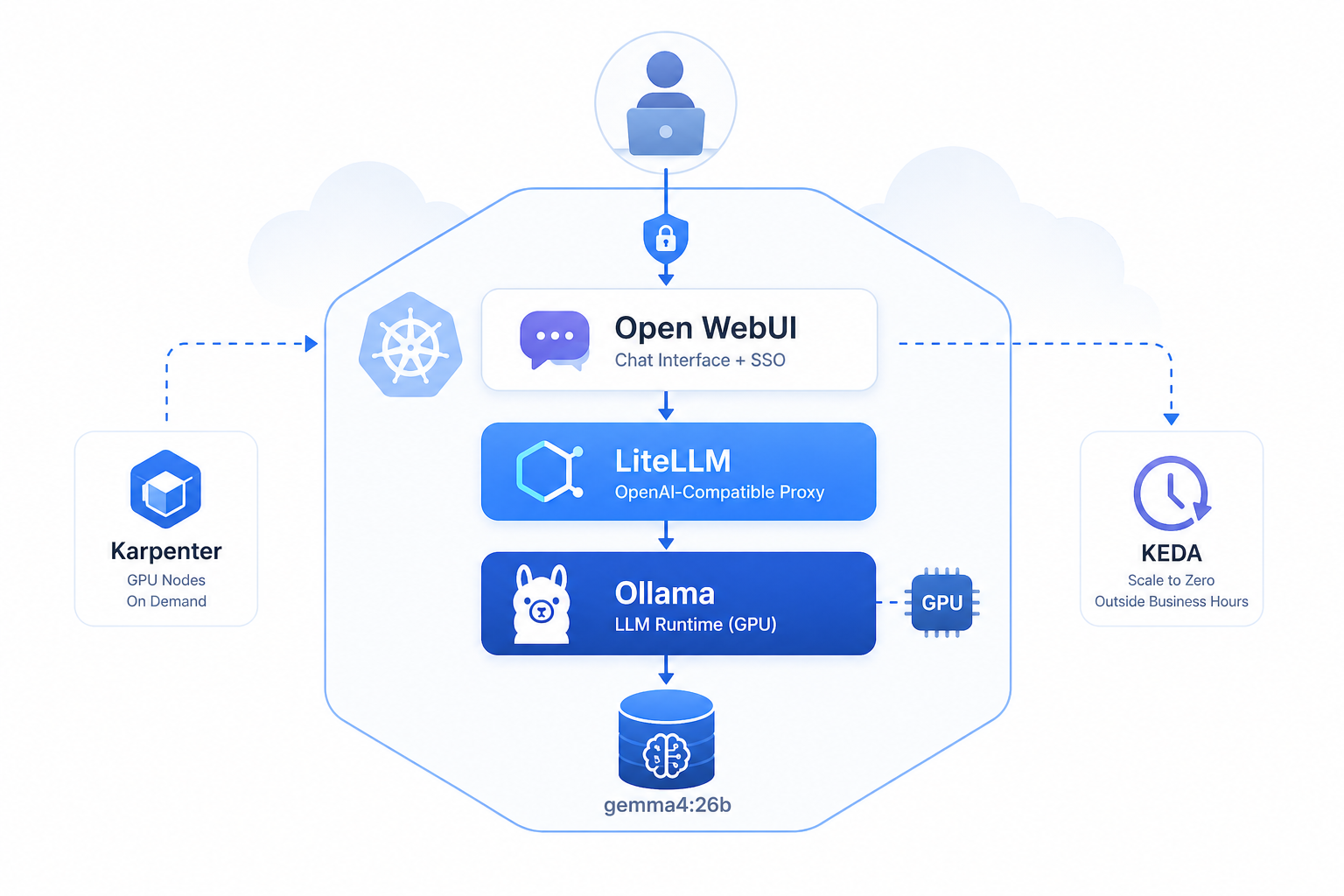
Self-hosted AI Stack on AWS EKS: Ollama + LiteLLM + Open WebUI
At jakops.cloud we help companies run their infrastructure on AWS — and lately, one of the most common requests has been: “Can we run our own LLM, privately, without sending data to OpenAI?”
The answer is yes. Here’s how I did it.
The Stack
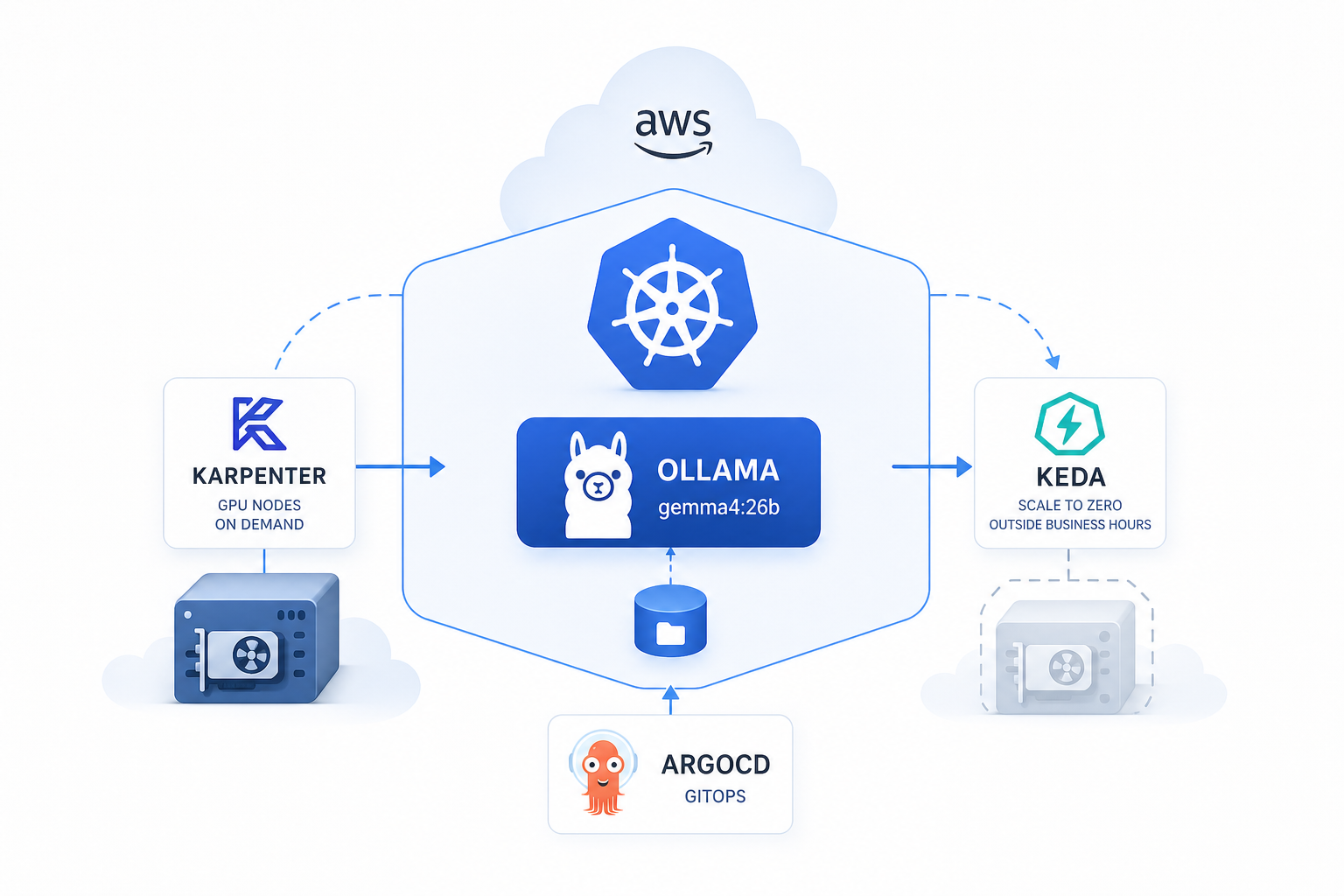
| Component | Role |
|---|---|
| Ollama | Runs the actual LLM model (e.g. Gemma) on GPU |
| LiteLLM | OpenAI-compatible proxy, handles routing & auth |
| Open WebUI | ChatGPT-like UI for end users |
| Karpenter | Provisions GPU nodes on demand |
| KEDA | Scales pods to zero outside business hours |
All deployed via Helm on AWS EKS, managed with ArgoCD.
Infrastructure: GPU Nodes on Demand
The biggest cost concern with GPU workloads is paying for idle nodes. I solved this with two tools:
Karpenter — GPU Node Provisioning
Instead of keeping a GPU node running 24/7, Karpenter provisions one only when a pod with nvidia.com/gpu resource request is scheduled.
# NodePool configured for GPU instances
requirements:
  - key: node.kubernetes.io/instance-type
    operator: In
    values:
      - g6e.2xlarge
taints:
  - key: nvidia.com/gpu
    effect: NoSchedule
    value: "true"
disruption:
  consolidationPolicy: WhenEmptyOrUnderutilized
  consolidateAfter: 1s
Node is created in ~2 minutes and terminated as soon as it’s empty.
KEDA — Scale to Zero
Ollama scales down to 0 replicas outside business hours using a cron trigger:
triggers:
  - type: cron
    metadata:
      timezone: "UTC"
      start: "0 8 * * 1-5"   # Mon-Fri 8:00 UTC
      end: "0 16 * * 1-5"    # Mon-Fri 16:00 UTC
      desiredReplicas: "1"
This alone reduced GPU costs by ~60% compared to always-on.
Helm Chart Structure
I packaged everything as a single umbrella Helm chart with three sub-charts as dependencies:
dependencies:
  - name: nvidia-device-plugin
    version: "0.18.0"
    repository: https://nvidia.github.io/k8s-device-plugin
  - name: litellm-helm
    version: "1.82.3"
    repository: oci://docker.litellm.ai/berriai
  - name: open-webui
    version: "13.3.1"
    repository: https://helm.openwebui.com
Ollama itself is a custom deployment within the chart.
Model Pulling on Startup
Since there’s no persistent volume (cost optimization), the model is pulled from Ollama registry on every pod start via a postStart lifecycle hook:
lifecycle:
  postStart:
    exec:
      command:
        - /bin/sh
        - -c
        - |
          sleep 10
          ollama pull gemma4:26b
⚠️ First start takes a few minutes depending on model size. Plan your liveness probe
initialDelaySecondsaccordingly.
LiteLLM as the OpenAI-Compatible Gateway
LiteLLM sits between Open WebUI and Ollama, providing:
- OpenAI-compatible API (drop-in replacement)
- Master key auth
- Model routing
- Usage tracking via PostgreSQL
proxy_config:
  model_list:
    - model_name: gemma4:26b
      litellm_params:
        model: ollama/gemma4:26b
        api_base: http://llm-ollama-svc.llm.svc.cluster.local:11434
Open WebUI with Microsoft SSO
Open WebUI is configured with Microsoft Entra ID (Azure AD) SSO — users log in with their company accounts, no separate credentials needed.
sso:
  enabled: true
  microsoft:
    enabled: true
    clientExistingSecret: "llm-openwebui-secret"
User data and uploads are stored in S3 instead of a local PVC — much simpler to operate.
Network Security
A NetworkPolicy ensures Ollama is only reachable from LiteLLM — not from any other pod in the cluster:
networkPolicy:
  enabled: true
  ingress:
    - podSelector:
        app: llm-litellm
      ports:
        - port: 11434
Final Architecture
User Browser
     │
     ▼
Open WebUI (ALB Ingress, HTTPS)
     │
     ▼
LiteLLM Proxy (internal, OpenAI API)
     │
     ▼
Ollama (ClusterIP, GPU node via Karpenter)
     │
     ▼
  gemma4:26b
Lessons Learned
- Persistent volume vs. pull-on-start — PVC is simpler operationally, but pull-on-start + spot instances is cheaper. Choose based on your startup time tolerance.
- KEDA + Karpenter combo is powerful — zero cost when idle, full power during work hours.
- LiteLLM is essential — don’t expose Ollama directly. The proxy layer gives you auth, routing, and observability for free.
- Spot instances work for LLMs if you handle interruptions gracefully (KEDA will reschedule).
Need Help Running a Self-Hosted AI Stack on AWS?
If you’d rather skip the trial-and-error and get a production-ready LLM deployment from day one — that’s exactly what I do at jakops.cloud.
I can help you with:
- Deploying Ollama + LiteLLM + Open WebUI on EKS with GPU nodes provisioned on demand via Karpenter
- Configuring KEDA cron scalers to eliminate idle GPU costs outside business hours
- Setting up Microsoft Entra ID (Azure AD) SSO for Open WebUI
- Packaging your full AI stack as a single umbrella Helm chart with ArgoCD delivery
- Securing inter-service communication with NetworkPolicies and External Secrets Operator
📩 Book a free 30-minute infrastructure audit — I’ll review your current setup, identify the gaps, and tell you exactly what needs to change.
No fluff. Just actionable advice from someone who’s done this in production.
jakops.cloud — AWS & Kubernetes DevOps services